On this page
An image editing prompt tells the editor what to change in an existing picture. The source already supplies the subject and composition, so begin with the change you need and then state what should stay the same.
A practical prompt structure
Use this structure as a starting point: Change [specific part] to [desired appearance]. Keep [important details] unchanged. Add a lighting, color, or framing instruction only when it matters to the outcome.
For example: "Replace the background with a plain warm-gray studio backdrop. Keep the blue mug, handle shape, printed logo, and camera angle unchanged. Match the soft shadow to the new background."
This is a suggested instruction, not a demonstrated EzImageAI result. AI edits can still alter details you ask to preserve.
Product photo: replace the setting
Start with a source that clearly shows the whole product. A useful instruction identifies the surface and background separately:
Prompt
Place the bottle on a pale stone tabletop with a neutral beige background. Keep the bottle silhouette, cap, label wording, and viewing angle unchanged. Add a soft contact shadow beneath it.
Review the label at full size afterward. Small text, logos, reflections, and transparent edges need particular care. Use a conventional image editor if the finished label must be an exact match.
Portrait: adjust the light
For a lighting change, describe the direction and softness rather than asking to "make it better":
Prompt
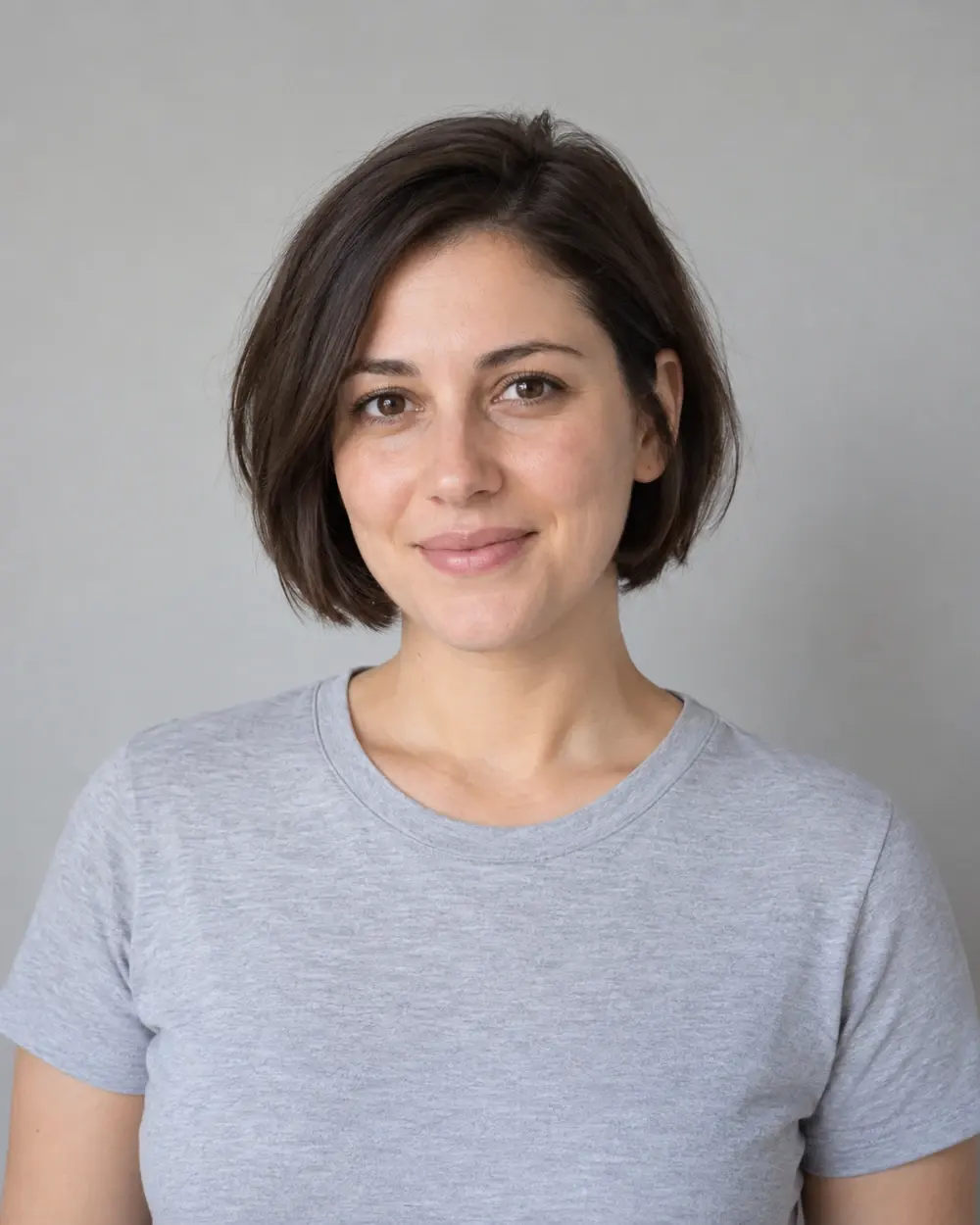
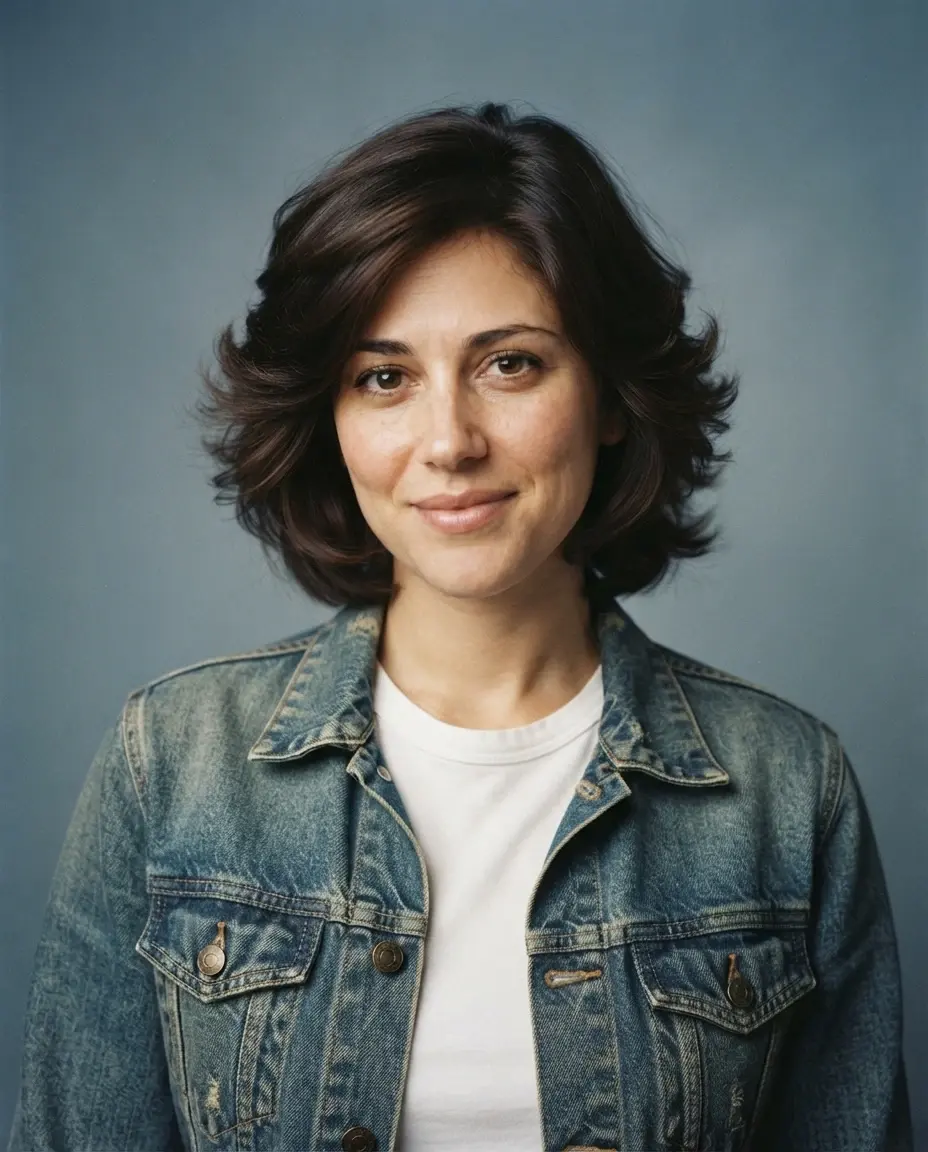
Change the lighting to soft window light from the left. Keep the person's facial features, expression, hairstyle, clothing, and framing unchanged. Preserve natural skin texture.
Only edit portraits you have permission to use. Compare facial details against the original; a request to preserve identity is not a guarantee that every feature will remain unchanged.
Background cleanup: specify the object
Prompt
Remove the red bag on the floor to the right of the chair. Fill that area with a continuation of the wooden floor. Keep the chair, wall, and crop unchanged.
An instruction that identifies the object and its position gives a clearer target than "remove distractions." Check for repeated textures, broken floor lines, or a leftover shadow around the edited area.
When the result changes too much
Reduce the instruction to one main change. Remove conflicting directions, such as asking for both a tight crop and unchanged framing. Return to the original source if successive edits have drifted too far. If you use Edit again on an eligible saved result, remember that it creates a new edit with its own credit charge.
Higher resolution changes the output size; it does not guarantee a more accurate instruction. Choose from the settings currently offered in the editor and check the credit amount before confirming.
Prepare an edit in EzImageAI
Open the AI image editor, choose a JPEG, PNG, or WebP source, and enter your instruction. The page checks current availability before you can continue. When the guest trial is available, it offers one private, watermarked preview; account access is required for the other editing options shown in the product.
If editing is unavailable, you can still refine a prompt and inspect the illustrative examples. Check availability again later or contact support. Signing in does not by itself restore an unavailable service.
See the quick start for the upload and result workflow, output settings for image options, and private editing guide for access and retention details.